
What to Watch Out for When Setting Up OpenAI (ChatGPT) Ads Conversions
ChatGPT ads are now live in Turkey too, and e-commerce sites have started setting up conversion tracking. Setup via Google Tag Manager with the official OpenAI template or Stape's template looks simple on paper.
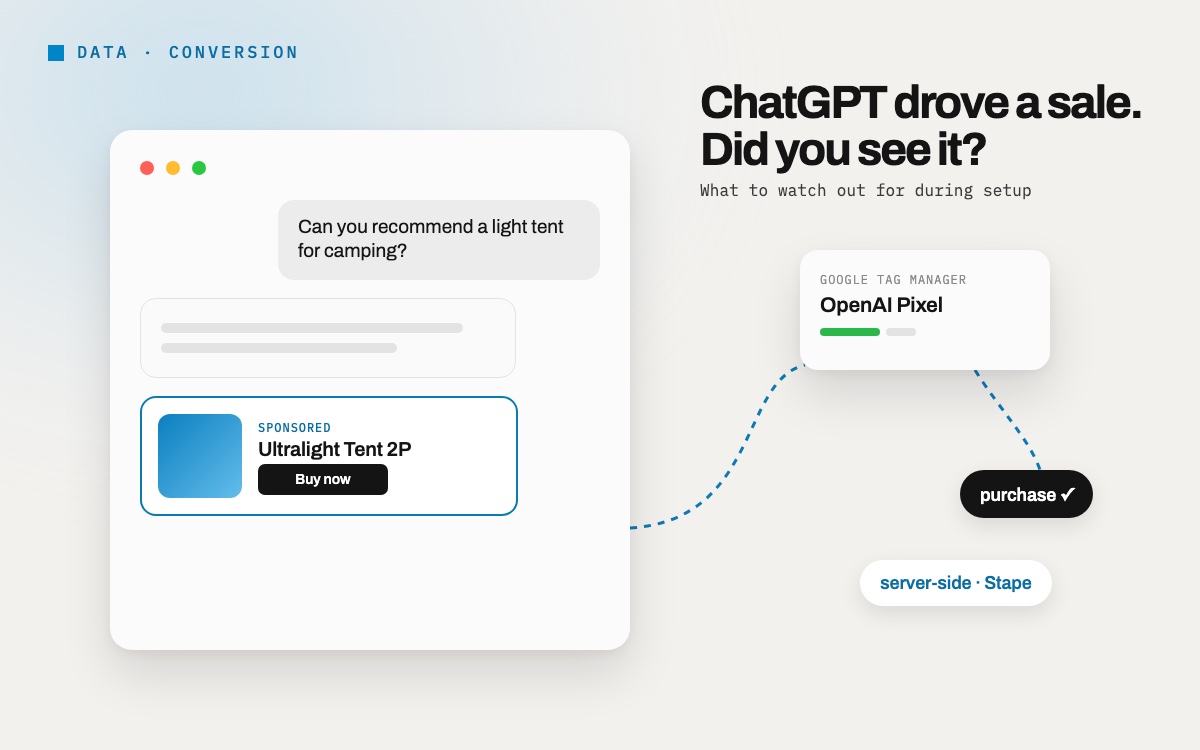
ChatGPT ads are now live in Turkey too, and e-commerce sites have started setting up conversion tracking. Setup via Google Tag Manager with the official OpenAI template or Stape's template looks simple on paper. But if you skip a few details, conversions either never arrive or are reported with the wrong amounts. Here is what you need to know, in brief.
The setup has two separate steps: first you define the conversions (page_viewed, items_added, checkout_started, order_created, etc.) in the OpenAI Ads interface, then you set up the tags that will send these events through Google Tag Manager.
Quick Summary
- Amount must be an integer, in the smallest currency unit. For 129.99 TRY you send 12999, not 129.99. If you send the wrong unit, the amount shows up 100 times smaller.
- Don't fill in the contents array by hand for multi-product baskets. The number of products in the basket varies, so instead of typing fixed rows into the table, use a variable that reads the dataLayer and converts it into an array.
- There is no separate transaction_id field for purchases. You can put the order number in the Event ID field.
- Handle the Consent Mode check in one place. Stape's template handles it internally, so don't also select "consent required" in GTM, otherwise events waiting for consent are lost (the official template has no such queueing feature).
- Hashing behavior depends on the template. The official template expects you to do the hashing yourself; Stape's accepts both raw and hashed values and tells them apart.
Let's get into the details.
Amount: Smallest Unit, Integer
OpenAI's pixel expects the amount not as a decimal but as an integer in the currency's smallest unit (kuruş, cent). For a 500 TRY product, the value to send is 50000.
The official template has a single Amount field and only accepts an integer in the smallest unit. If you type 500, it is processed as 5 TRY; if you type 500.00, it is processed as an error.
Stape's template has two separate Amount options: "lowest unit" (smallest unit, 50000) and "regular unit" (normal amount, 500). Fill in only one of them; if you chose regular unit, simply typing 500 is enough and the template does the conversion itself.
After setup, always check the actual amount value the tag sends in GTM Preview; in every case, the value you should see is 50000.
If There Is More Than One Product in the Basket
The checkout_started and order_created events expect a product list (contents). OpenAI's official template in GTM offers a fixed number of rows; since the number of products in a basket varies, typing rows into this table by hand doesn't work.
The right approach is to write a Custom JavaScript Variable that reads the product list in the dataLayer and converts it into the format OpenAI expects:
function () {
  try {
    var ec = {{DLV - ecommerce}} || {};
    var items = ec.items || [];
    var cur = ec.currency;
    var out = [];
    for (var i = 0; i < items.length; i++) {
      var it = items[i];
      out.push({
        id: String(it.item_id),
        name: it.item_name,
        content_type: 'product',
        quantity: Math.round(it.quantity) || 1,
        amount: Math.round(it.price * 100),
        currency: cur
      });
    }
    return out;
  } catch (e) {
    return [];
  }
}
This variable works the same way whether there is 1 product in the basket or 10, and needs no manual changes as the number of products changes. For example, with 2 products in the basket, the output looks like this:
[
[
  { id: "1001", name: "Coffee Machine", content_type: "product", quantity: 1, amount: 89900, currency: "TRY" },
  { id: "1002", name: "Coffee Grinder", content_type: "product", quantity: 2, amount: 34900, currency: "TRY" }
]
]
Where Should the Order Number Go for Purchases?
OpenAI's schema has no separate transaction_id field. Instead, you can put the order number in the Event ID field. This field is actually meant for deduplication, but since the order number is already unique, it fits the purpose perfectly. If you later set up the Conversions API on the server side, you can use the same Event ID there to prevent browser and server events from being counted twice.
Consent Mode: One Check Is Enough, but Not Every Template Behaves the Same
If your site uses Google Consent Mode, don't run the consent check in two places at once. However, the two templates behave differently here.
Stape's template checks the ad_storage signal internally. Without consent it doesn't load the pixel, but it holds events in a queue in page memory; as soon as consent is given, it sends the queued events automatically. A separate checkbox called "Enable Google Consent Mode support" makes this possible; when you turn it on, the queueing mechanism kicks in.
The official template has no such queueing mechanism. It relies only on GTM's own native consent check (Advanced Settings > Consent Settings, "Require additional consent for tag to fire"). This check works on an all-or-nothing basis: without consent the tag doesn't fire at all, and when consent arrives, events missed in the meantime don't come back; nothing is queued or resent. So if a user adds a product to the basket without clicking the consent banner, that event is lost for good.
In practice, this difference means: if a high share of your users react late to the consent banner (this share is usually higher on mobile), using Stape's template can help reduce data loss. If you continue with the official template, you need to select "Require additional consent → ad_storage" in GTM's own Consent Settings; otherwise the tag may fire and send data even without consent.
Hashing Email and External ID
The official OpenAI template expects user data to be hashed in advance; it doesn't hash it itself. If you need to hash manually, you need a self-contained SHA-256 function, because GTM's standard Custom JavaScript Variable cannot load external libraries:
function() {
    return sha256( {{value}} ); //replace value with right variable
    function sha256(r){if(r){r=r.toString();for(var $,_,o=Math.pow,f=o(2,32),t="length",a="",n=[],h=8*r[t],i=sha256.h=sha256.h||[],c=sha256.k=sha256.k||[],e=c[t],s={},u=2;e<64;u++)if(!s[u]){for($=0;$<313;$+=u)s[$]=u;i[e]=o(u,.5)*f|0,c[e++]=o(u,1/3)*f|0}for(r+="\x80";r[t]%64-56;)r+="\0";for($=0;$<r[t];$++){if((_=r.charCodeAt($))>>8)return;n[$>>2]|=_<<(3-$)%4*8}for(_=0,n[n[t]]=h/f|0,n[n[t]]=h;_<n[t];){var v=n.slice(_,_+=16),g=i;for($=0,i=i.slice(0,8);$<64;$++){var l=v[$-15],k=v[$-2],x=i[0],S=i[4],d=i[7]+(A(S,6)^A(S,11)^A(S,25))+(S&i[5]^~S&i[6])+c[$]+(v[$]=$<16?v[$]:v[$-16]+(A(l,7)^A(l,18)^l>>>3)+v[$-7]+(A(k,17)^A(k,19)^k>>>10)|0),p=(A(x,2)^A(x,13)^A(x,22))+(x&i[1]^x&i[2]^i[1]&i[2]);(i=[d+p|0].concat(i))[4]=i[4]+d|0}for($=0;$<8;$++)i[$]=i[$]+g[$]|0}for($=0;$<8;$++)for(_=3;_+1;_--){var w=i[$]>>8*_&255;a+=(w<16?0:"")+w.toString(16)}return a}function A(r,$){return r>>>$|r<<32-$}}
}
Stape's template is more flexible here: if you give the field the raw value ([email protected]), the template normalises and hashes it itself; if you give it a hashed value (a 64-character hex string), the template recognizes it and sends it as is, untouched. In other words, it decides for itself what you sent, and both are accepted without issue. The only condition is that if you do the hashing, you must do the normalisation step (lower case, trimming spaces) yourself before hashing, since the template cannot reverse an already hashed value to normalise it.
Final Check
Before publishing, check in GTM Preview that the tag fires successfully, check the amount and contents values being sent in the browser console (by temporarily turning on the tag's debug option), and finally check in the Event Stream screen of OpenAI Ads Manager that the event has arrived. It is normal for the Email and External ID fields to show as [REDACTED] in the interface; this is not an error. The data has been sent, and the interface masks it for privacy.
Let’s talk about this for your brand.
Write to us →